JPiro Page Builder - Manuale d'uso
Componente per Joomla 5 e 6 · versione 0.74.1
1. Introduzione
JPiro Page Builder è un costruttore visuale di pagine per Joomla 5 e 6. Le pagine che costruisci escono come normale HTML Bootstrap 5, senza markup proprietario.
Il componente offre:
- Pagine: pagine complete, collegabili a una voce di menu.
- Moduli: blocchi riutilizzabili (una riga, una sezione), da inserire in più pagine o in una posizione modulo del template.
- Due editor: l'editor nel backend e l'editor live sul sito, con la pagina reale.
- Blocchi: più di 50 tipi, dalla sezione al conto alla rovescia.
- Libreria colori con variabili CSS e opacità.
- Versioni, SEO per pagina, importazione e esportazione in JSON.
2. Installazione e requisiti
Requisiti
- Joomla 5 o Joomla 6.
- Una versione di PHP supportata dal tuo Joomla.
- Bootstrap 5 nel template del sito. Se il template non lo include, attiva l'opzione Carica Bootstrap da CDN nel frontend (vedi Opzioni).
- Un browser recente. I colori della libreria con opacità usano la funzione CSS
color-mix(): serve Chrome 111, Safari 16.2 o Firefox 113, o più nuovi.
Installare il componente
- Vai in Sistema > Installa > Estensioni.
- Carica il file
com_jppagebuilder_v0.74.1.zip. - Per aggiornare, carica il nuovo zip sopra la versione installata: l'installazione usa il metodo upgrade.
Installare il modulo (facoltativo)
Il pacchetto mod_jppagebuilder mostra una pagina o un modulo salvato in una normale posizione modulo del template. Installalo allo stesso modo. Richiede il componente.
Aggiornare da JPage Builder
Fino alla versione 0.74.1 il componente si chiamava JPage Builder (com_jpagebuilder). Ora si chiama JPiro Page Builder (com_jppagebuilder) e si installa come estensione nuova, accanto alla vecchia.
- Installa
com_jppagebuilder(e, se lo usi, il modulomod_jppagebuilder). - Apri Componenti > JPiro Page Builder. Alla prima apertura il componente copia dal vecchio: pagine, moduli salvati, versioni, opzioni, permessi, voci di menu e istanze del modulo. Copia solo nelle tabelle ancora vuote, quindi non duplica né sovrascrive nulla. Anche la licenza viene ripresa.
- Un messaggio elenca ciò che è stato importato. Controlla le pagine sul sito.
- Il vecchio componente non viene toccato: quando tutto è a posto puoi disinstallarlo.
Attivare la licenza
- Apri Componenti > JPiro Page Builder e premi Licenza.
- Inserisci la chiave e premi Attiva.
- La chiave si verifica una sola volta su
licenses.pirosoft.ite il dominio del sito viene registrato. Dopo, la licenza si controlla in locale.
La schermata mostra lo stato (Licenza attiva), la chiave in forma mascherata, il dominio, il tipo e la scadenza. Se rimuovi la licenza, l'editor smette di funzionare finché non inserisci una chiave.
Nella stessa schermata il riquadro Condizioni commerciali apre le condizioni di licenza e di attivazione, in italiano e in inglese. I file sono inclusi nel pacchetto (media/com_jppagebuilder/license/).
3. Pagine
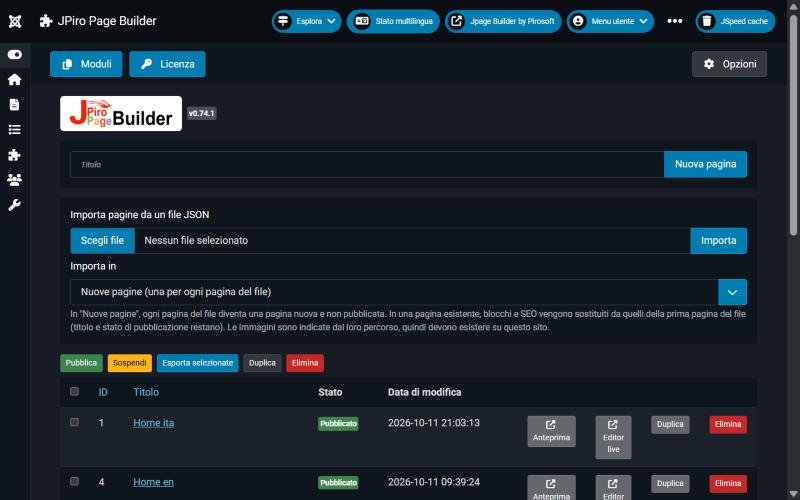
Apri Componenti > JPiro Page Builder > Pagine.
Creare una pagina
Scrivi il titolo nel campo in alto e premi Nuova pagina. Si apre l'editor.
Azioni sulle pagine
Seleziona una o più pagine con la casella a sinistra, poi usa i pulsanti sotto il modulo di importazione:
- Pubblica e Sospendi: cambiano lo stato.
- Esporta selezionate: scarica un file JSON con le pagine scelte.
- Duplica: crea una copia di ogni pagina selezionata, con contenuto e impostazioni SEO. La copia ha il titolo «(copia)» ed è sospesa: controllala e pubblicala quando è pronta.
- Elimina: chiede conferma.
Ogni riga ha anche i pulsanti Anteprima, Editor live ed Elimina.
Importare pagine
Scegli un file JSON esportato da JPiro Page Builder e premi Importa. Il campo Importa in decide dove vanno i contenuti:
- Nuove pagine: ogni pagina del file diventa una pagina nuova, non pubblicata.
- Una pagina esistente: blocchi e SEO sono sostituiti da quelli della prima pagina del file. Titolo e stato di pubblicazione restano.
I blocchi sconosciuti o non validi vengono saltati e il messaggio finale indica quanti. Le immagini sono indicate dal loro percorso: devono esistere anche sul sito di destinazione.
Mostrare una pagina sul sito
- Vai in Menu e crea una nuova voce.
- Come tipo scegli JPiro Page Builder > Page.
- Nel campo Page scegli la pagina.
In alternativa usa il modulo mod_jppagebuilder in una posizione del template: come Source scegli Page (solo pagine pubblicate) oppure Saved module.
4. Editor nel backend
Si apre dal titolo di una pagina o con Nuova pagina.
Le tre zone
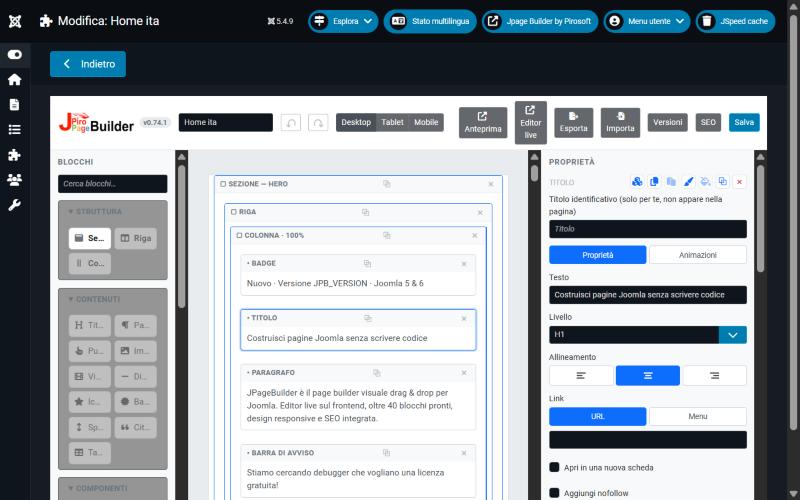
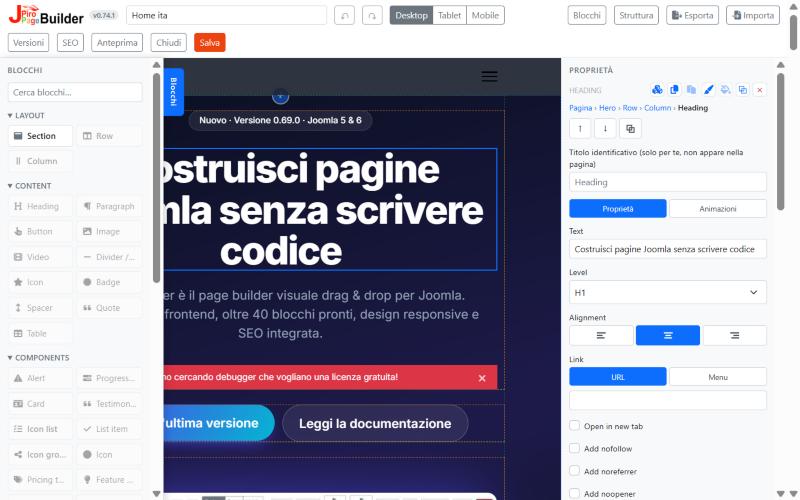
- Blocchi (sinistra): la palette, divisa in gruppi. Trascina un blocco nella struttura. Il campo Cerca blocchi… in alto filtra la palette mentre scrivi: cerca nel nome del blocco e nel suo tipo interno. Esc svuota il campo.
- Struttura (centro): lo schema della pagina, con sezione, riga e colonne. Mostra i blocchi in forma semplificata, non il risultato finale.
- Proprietà (destra): le opzioni del blocco selezionato. Se non c'è una selezione, mostra le opzioni SEO della pagina.
La barra degli strumenti
- Annulla / Ripeti (Ctrl+Z, Ctrl+Y).
- Desktop, Tablet, Mobile: scegli il dispositivo di anteprima. Molte proprietà hanno valori diversi per ogni dispositivo.
- Anteprima ed Editor live: aprono la pagina sul sito.
- Esporta e Importa: esportano questa pagina in un file JSON, o ne sostituiscono il contenuto con un file. Dopo l'importazione controlla la pagina e premi Salva.
- Versioni e SEO: vedi i capitoli dedicati.
- Salva.
Accanto al titolo, nella barra di entrambi gli editor, un'etichetta mostra la versione installata del componente (per esempio v0.74.1). La stessa etichetta compare in cima all'elenco pagine. Indicala quando segnali un problema.
Ridimensionare le colonne
Trascina il bordo tra due colonne di una riga. Un indicatore mostra la percentuale.
5. Editor live
L'editor live lavora sulla pagina reale, con il template del sito. Si apre con il pulsante Editor live dall'elenco pagine o dall'editor del backend.
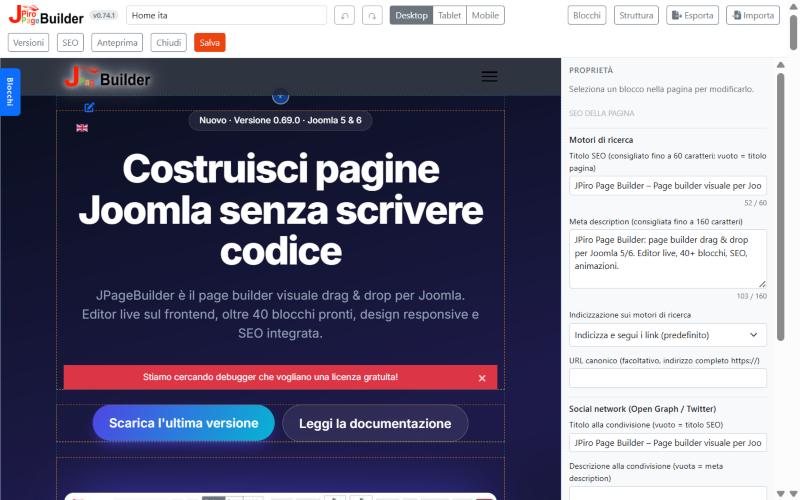
La barra in alto contiene: il titolo, annulla e ripeti, la scelta del dispositivo, Blocchi, Struttura, Esporta, Importa, Versioni, SEO, Anteprima, Chiudi e Salva.
Lavorare sulla pagina
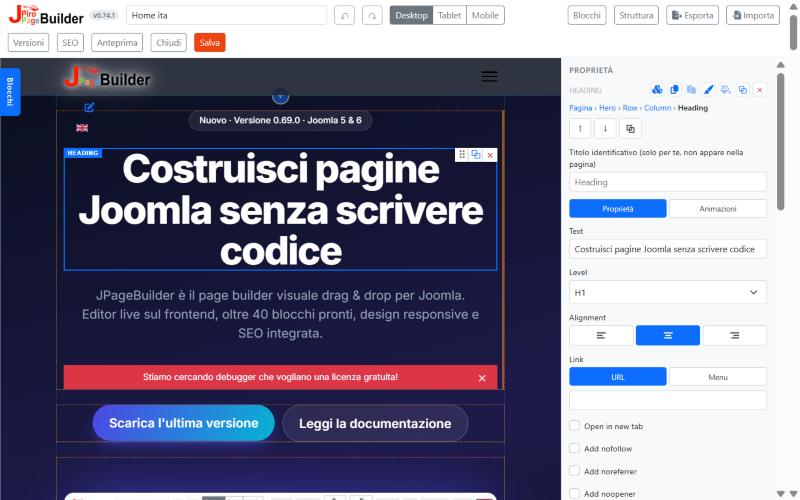
- Clicca un elemento per selezionarlo. A destra compaiono le sue proprietà.
- Il percorso (Pagina > Sezione > Riga > Colonna > Timeline...) in alto nel pannello permette di salire al blocco padre.
- Le frecce spostano il blocco in su o in giù. Gli altri pulsanti lo duplicano o lo eliminano.
- Copia blocco e Incolla blocco (icone accanto al nome del blocco) copiano un blocco con tutto il suo contenuto. Si incolla nella stessa pagina oppure in un'altra pagina o in un modulo aperti nell'editor in un'altra scheda dello stesso browser. Il blocco incollato va dentro il blocco selezionato, se lo può contenere; altrimenti subito dopo di esso. Senza selezione va in fondo alla pagina: il pulsante Incolla blocco compare anche nel pannello della pagina. Se il blocco non può stare in quel punto, un messaggio lo segnala.
- Copia stile e Incolla stile (icone del pennello e del secchiello) copiano l'aspetto di un blocco su un altro: colori, spaziature, misure, sfondo, tipografia, allineamento, visibilità, animazione e classi CSS. Il contenuto (testi, link, immagini) non cambia. Se il blocco di destinazione è di un altro tipo, si copiano solo le opzioni che ha in comune. Lo stile copiato resta disponibile anche passando a un'altra pagina.
- Il pulsante + sul bordo tra due sezioni (e sopra la prima, o al centro di una pagina vuota) aggiunge in quel punto una nuova Sezione, con Riga e Colonna già pronte.
- Apri Blocchi per scegliere un blocco da aggiungere; il campo di ricerca in alto trova un blocco per nome. Struttura apre lo schema ad albero, utile per i blocchi annidati.
6. Catalogo dei blocchi
I blocchi sono divisi in cinque gruppi. Le opzioni di ogni blocco, con un'immagine del risultato, sono nel documento Riferimento dei blocchi (JPiroPageBuilder-blocchi-it.pdf o blocchi-blocks.html).
Struttura
Sezione, Riga, Colonna. Ogni pagina è fatta di sezioni, che contengono righe, che contengono colonne. I blocchi di contenuto vanno dentro le colonne.
Testi multilingua con le costanti di lingua
Nei campi di testo, link e immagine dei blocchi, e nei testi SEO della pagina, puoi scrivere una costante di lingua di Joomla al posto del testo: da sola (MIOSITO_PRIVACY_URL) oppure dentro un testo più lungo (Leggi la {{MIOSITO_PRIVACY_TESTO}}). Nella pagina la costante diventa il suo testo nella lingua del visitatore.
- Le costanti si creano in Sistema > Gestione > Override delle lingue. Se cambi il testo della costante, cambia in tutti i blocchi che la usano.
- Nella pagina salvata e nell'editor resta la costante: viene sostituita solo quando la pagina viene mostrata.
- Una costante che non esiste resta scritta così com'è, così un errore di battitura si vede subito.
Larghezza delle sezioni
Nelle proprietà della Sezione, l'opzione Larghezza contenuto decide quanto spazio occupano righe e colonne:
| Valore | Risultato |
|---|---|
| Boxed (predefinito) | Il contenuto sta nel contenitore Bootstrap (.container), che si allarga a gradini con lo schermo. |
| Fluida | Il contenuto occupa tutta la larghezza disponibile (.container-fluid). |
| Personalizzata | Tutta la larghezza, con un limite massimo per Desktop, Laptop e Mobile. Accetta px, %, em, rem o vw. Un campo vuoto usa il valore delle Opzioni del componente, mostrato in grigio nel campo. |
Sezione a tutto schermo: lo sfondo della sezione va da un bordo all'altro della finestra, anche se il template del sito è boxed. Si combina con qualsiasi larghezza del contenuto: per esempio sfondo a tutto schermo e testo Boxed.
Contenuti
| Blocco | Uso |
|---|---|
| Titolo, Paragrafo | Testo. |
| Immagine, Video, Icona | Media. Le icone sono classi Font Awesome 6 Free (esempio fa-solid fa-star). |
| Divisore / Spaziatore, Spaziatore | Linea di separazione e spazio verticale. |
| Citazione | Stili semplice, riquadro, grande. Icona a scelta, sempre visibile; bordo sinistro "accento" attivabile o no. |
| Tabella | Righe e celle in un campo di testo; le celle si separano con |. |
| Pulsante, Badge | Pulsanti e etichette. |
Componenti
| Blocco | Uso |
|---|---|
| Avviso, Barra di avanzamento, Card | Componenti Bootstrap. L'avviso può avere un'icona a sinistra; con un link, tutto il riquadro diventa cliccabile. |
| Feature box | Titolo e testo con icona oppure immagine, posizionabile in alto, in basso, a sinistra o a destra. |
| Membro del team | Foto, nome e ruolo. La foto si sceglie dalla cartella images o con un URL e segue l'allineamento del testo. |
| Testimonianza, Tabella prezzi | Recensioni e piani. |
| Elenco con icone, Gruppo icone | Elenchi con icona e righe di icone (per esempio i social). |
| Timeline | Passi in sequenza. Ogni passo ha un punto colorato oppure un'icona. |
| Torna su | Pulsante fisso in un angolo che compare dopo lo scorrimento e riporta in cima alla pagina. |
| Barra di avviso | Striscia con testo, icona e link, fissa in alto, sticky o nel flusso della pagina. Si può chiudere e restare nascosta per alcuni giorni. |
| Modulo chat | Modulo di contatto con campi a scelta: all'invio apre WhatsApp o Telegram con il messaggio già scritto. Non invia dati al sito; casella della privacy opzionale. |
| Chat flottante | Pulsante WhatsApp o Telegram fissato alla finestra, in una delle nove posizioni (angoli e centro dei lati). Etichetta, colore, icona e messaggio precompilato sono a scelta. |
Interattivi
| Blocco | Uso |
|---|---|
| Accordion, Schede | Contenuti a voci apribili o a schede. L'accordion può generare i dati strutturati FAQ per Google (su un solo accordion per pagina). |
| Modale, Offcanvas, Popover | Pannelli e finestre che si aprono su richiesta. |
| Carosello | Slide a scorrimento. |
| Galleria | Immagini singole (da URL o dai media) oppure tutte le immagini di una cartella, generate in modo dinamico. Si aprono in un lightbox. |
| Carosello loghi | I loghi stanno su una sola riga: fermi, oppure in scorrimento continuo con velocità regolabile. |
Avanzati
| Blocco | Uso |
|---|---|
| Mappa, Contatore, Conto alla rovescia | Mappa incorporata, numeri animati, timer. |
| Articoli | Elenco degli articoli Joomla pubblicati di una categoria. |
| Modulo Joomla | Inserisce un modulo Joomla esistente. |
| Modulo JPiro Page Builder | Inserisce un modulo riutilizzabile. |
| HTML personalizzato | HTML libero. |
| Elenco etichette | Voci scritte una per riga (ingredienti, tag, caratteristiche), mostrate come etichette arrotondate, con icona opzionale prima di ogni voce. |
Opzioni comuni
Quasi tutti i blocchi hanno spaziatura (padding e margine), opzioni avanzate, Nascondi su desktop / laptop / mobile e animazione (tipo, direzione, durata, ritardo, quando parte).
7. Moduli riutilizzabili
Un modulo è un blocco costruito una volta e usato in più pagine. Se lo modifichi, cambia in tutte le pagine che lo usano.
Creare un modulo
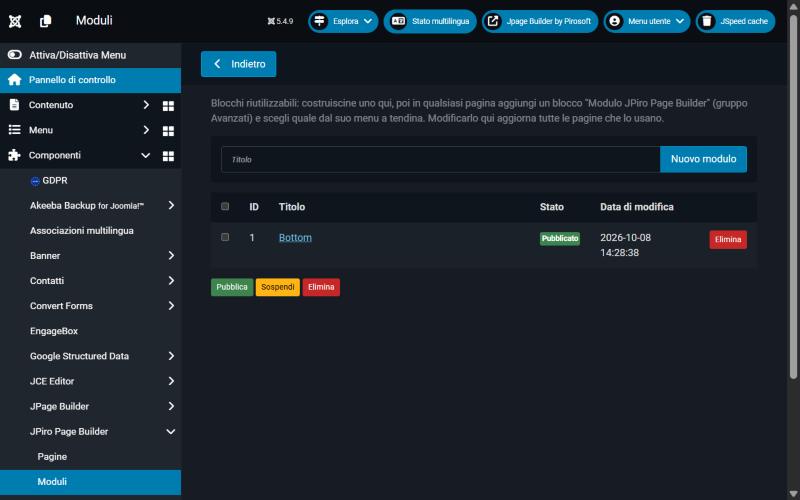
In Componenti > JPiro Page Builder > Moduli scrivi il titolo e premi Nuovo modulo.
Salvare una riga o una sezione come modulo
- Nell'editor seleziona una riga o una sezione.
- Nel pannello delle proprietà premi Salva come modulo.
- Scrivi il nome del nuovo modulo.
Usare un modulo
- In una pagina: aggiungi il blocco Modulo JPiro Page Builder (gruppo Avanzati) e scegli il modulo dal menu a tendina.
- In una posizione del template: usa il modulo Joomla
mod_jppagebuildercon Source = Saved module.
Solo i moduli pubblicati compaiono negli elenchi. L'elenco ha anche i pulsanti Pubblica, Sospendi ed Elimina.
8. Libreria colori
La libreria è una tavolozza di colori con un nome. Ogni selettore di colore dell'editor li propone come campioni.
Come funziona
Un blocco che usa un colore della libreria non salva il valore, ma un riferimento a una variabile CSS. Se cambi il colore nella libreria, cambia ovunque.
Il nome costruisce la variabile: Blu Brand diventa --jpb-color-blu-brand. Puoi usarla anche nel tuo CSS: var(--jpb-color-blu-brand).
Modificare la libreria
Vai in Componenti > JPiro Page Builder > Opzioni > Colori.
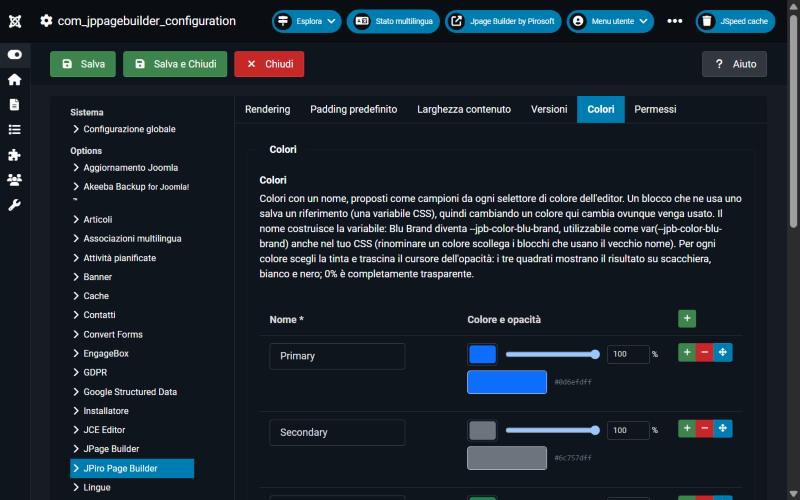
- Nome: massimo 40 caratteri.
- Colore e opacità: scegli la tinta, poi trascina il cursore (0 = trasparente, 100 = pieno) o scrivi la percentuale. I tre quadrati mostrano il risultato su scacchiera, bianco e nero. Sotto compare il valore, per esempio
#0d6efd80. - I pulsanti + e - aggiungono e tolgono righe. Il pulsante con le frecce le sposta. Il massimo è 60 colori.
La prima volta la libreria contiene i colori di Bootstrap. Se la svuoti e salvi, resta vuota.
Opacità nell'editor
Nel selettore di un blocco, i campioni della libreria portano il nome del colore. Dopo aver scelto un colore della libreria, il cursore accanto al selettore regola l'opacità solo per quell'uso, e l'etichetta mostra nome e percentuale (esempio colorsite · 56%).
9. Opzioni del componente
Apri Componenti > JPiro Page Builder > Opzioni. Le schede sono:
- Rendering: Carica Bootstrap da CDN nel frontend. Attiva l'opzione solo se il template del sito non include già Bootstrap 5.
- Padding predefinito: il padding con cui parte una nuova Sezione, Riga o Colonna, in pixel, separato per Desktop, Tablet e Mobile. Un campo vuoto lascia il valore del componente. Il lucchetto collega i quattro lati.
- Larghezza contenuto: la larghezza massima delle Sezioni impostate su Personalizzata che lasciano vuoto il proprio valore, per Desktop (predefinito 1320px), Laptop (960px, schermi fino a 991px) e Mobile (vuoto, schermi fino a 767px). Accetta px, %, em, rem o vw; un numero senza unità vale px. Un campo vuoto toglie il limite: Laptop e Mobile usano allora il valore del dispositivo superiore. Cambiando il valore si aggiornano subito tutte quelle Sezioni.
- Versioni: Versioni conservate per pagina. Ogni salvataggio memorizza una copia; restano solo le più recenti. Con 0 la cronologia è spenta.
- Colori: la libreria colori.
- Permessi: i permessi standard di Joomla per il componente.
10. SEO, versioni, esportazione
SEO della pagina
Il pulsante SEO apre le opzioni per ogni pagina:
- Motori di ricerca: titolo SEO (fino a 60 caratteri consigliati; vuoto = titolo della pagina), meta description (fino a 160), indicizzazione e URL canonico.
- Social network (Open Graph e Twitter): titolo, descrizione, immagine di condivisione (consigliata 1200x630), tipo di contenuto e card Twitter / X.
- Dati strutturati: aggiunge i dati schema.org WebPage in formato JSON-LD.
Versioni
Il pulsante Versioni mostra le copie salvate della pagina, in numero pari al limite impostato nelle Opzioni. Serve a tornare a un salvataggio precedente.
Esportare e importare una pagina
Sia nell'editor del backend sia nell'editor live:
- Esporta scarica la pagina in un file JSON.
- Importa sostituisce il contenuto della pagina aperta con un file JSON esportato da JPiro Page Builder. Nulla viene salvato finché non premi Salva. Se il file contiene più pagine, si usa solo la prima.
11. Novità e correzioni
Le novità e le correzioni dalla versione 0.61.1 alla 0.74.1.
Nuove funzioni
| Versione | Novità |
|---|---|
| 0.62.0 | Nuovo blocco Chat flottante: pulsante WhatsApp o Telegram fissato alla finestra. |
| 0.63.0 | Larghezza contenuto della Sezione (Boxed, Fluida, Personalizzata) e Sezione a tutto schermo. Nuova scheda Larghezza contenuto nelle Opzioni del componente. Vedi Larghezza delle sezioni. |
| 0.64.0 | Copia stile e Incolla stile nel pannello delle proprietà. L'editor live si apre dentro il template del sito, come la pagina pubblicata. |
| 0.65.0 | La barra degli editor mostra la versione installata del componente. |
| 0.66.0 | Nuovo blocco Elenco etichette: voci scritte una per riga, mostrate come etichette arrotondate. |
| 0.66.2 | Ricerca nei blocchi: un campo sopra la palette filtra i blocchi per nome. Il blocco Avviso può avere un'icona e un link. |
| 0.67.0 | Copia blocco e Incolla blocco, anche tra pagine e moduli diversi. Nuove icone per Copia stile (pennello) e Incolla stile, per distinguerle da Copia/Incolla blocco. |
| 0.67.1 | Nell'Avviso con link tutto il riquadro è cliccabile; il campo Testo del link non serve più. |
| 0.67.5 | Logo e versione installata in cima all'elenco pagine. |
| 0.68.0 | Duplica nell'elenco pagine: copia le pagine selezionate con contenuto e SEO; le copie nascono sospese. |
| 0.68.1 | Condizioni commerciali di licenza e attivazione incluse nel pacchetto, con i link nella pagina Licenza. |
| 0.69.0 | Nuovo blocco Modulo chat: modulo di contatto che apre WhatsApp o Telegram con le risposte già scritte nel messaggio. |
| 0.70.0 | Accordion: opzione dei dati strutturati FAQ per Google (JSON-LD). |
| 0.71.0 | Editor live: pulsante + tra le sezioni per aggiungere una nuova Sezione in quel punto. |
| 0.72.0 | Nuovo blocco Barra di avviso: striscia fissa, sticky o nella pagina, con chiusura ricordata per alcuni giorni. |
| 0.73.0 | Nuovo blocco Torna su. |
| 0.74.0 | Costanti di lingua nei campi di testo, link e immagine e nei testi SEO, tradotte nella lingua del visitatore. |
| 0.74.1 | Costanti di lingua riconosciute anche come parola in mezzo al testo. Il componente cambia nome in JPiro Page Builder (com_jppagebuilder) e importa da solo i dati del vecchio JPage Builder. |
Correzioni
| Versione | Correzione |
|---|---|
| 0.63.1 | L'allineamento del blocco Immagine funziona anche con i template che mostrano le immagini come blocchi (per esempio Helix). |
| 0.64.1 | Le Righe con spaziatura personalizzata rispettano di nuovo il margine superiore impostato. |
| 0.65.1 | Copia stile copia anche animazioni e opzioni di tipografia. L'editor live non va più in errore mentre mostra la versione. |
| 0.66.1 | Il pannello delle proprietà resta visibile negli editor anche quando la pagina contiene un Modale o un Offcanvas. |
| 0.66.2 | L'editor dei moduli riutilizzabili si apre anche sui server che distinguono maiuscole e minuscole nei nomi dei file (per esempio Linux). |
| 0.67.2 | L'editor parte anche con i plugin di ottimizzazione che ritardano gli script (per esempio JSpeed o JCH Optimize). Se i dati di avvio mancano, un messaggio spiega il motivo. |
| 0.67.3 | Editor JCE: la finestra per inserire un link non dà più «invalid security token» o «Request-URI Too Long». |
| 0.67.4 | Editor JCE: la correzione vale anche per le versioni recenti di JCE; la finestra dei link non resta più in caricamento. |
| 0.72.1 | Nell'editor la Barra di avviso resta nel flusso della pagina e non copre più i pulsanti di salvataggio. |
| 0.73.1 | La licenza non si azzera più quando si salvano le Opzioni del componente. |
JPiro Page Builder - User manual
Component for Joomla 5 and 6 · version 0.74.1
1. Introduction
JPiro Page Builder is a visual page builder for Joomla 5 and 6. The pages you build come out as plain Bootstrap 5 HTML, with no proprietary markup.
The component offers:
- Pages: complete pages that you link to a menu item.
- Modules: reusable blocks (a row, a section) that you place in several pages or in a template module position.
- Two editors: the backend editor and the live editor, which works on the real page.
- Blocks: more than 50 types, from the section to the countdown.
- Colour library with CSS variables and opacity.
- Versions, per-page SEO, and JSON import and export.
2. Installation and requirements
Requirements
- Joomla 5 or Joomla 6.
- A PHP version supported by your Joomla.
- Bootstrap 5 in the site template. If the template does not include it, turn on Load Bootstrap from CDN on the frontend (see Options).
- A recent browser. Library colours with opacity use the CSS function
color-mix(): you need Chrome 111, Safari 16.2 or Firefox 113, or newer.
Install the component
- Go to System > Install > Extensions.
- Upload the file
com_jppagebuilder_v0.74.1.zip. - To update, upload the new zip over the installed version: the package uses the upgrade method.
Install the module (optional)
The mod_jppagebuilder package shows a page or a saved module in a normal template module position. Install it the same way. It needs the component.
Upgrading from JPage Builder
Up to version 0.74.1 the component was called JPage Builder (com_jpagebuilder). It is now JPiro Page Builder (com_jppagebuilder) and installs as a new extension, next to the old one.
- Install
com_jppagebuilder(and, if you use it, themod_jppagebuildermodule). - Open Components > JPiro Page Builder. On the first visit the component copies from the old one: pages, saved modules, versions, options, permissions, menu items and module instances. It copies only into tables that are still empty, so it never duplicates or overwrites anything. The licence is taken over too.
- A message lists what was imported. Check your pages on the site.
- The old component is left untouched: once everything is fine you can uninstall it.
Activate the licence
- Open Components > JPiro Page Builder and click License.
- Enter the key and click Activate.
- The key is checked once on
licenses.pirosoft.itand the site domain is registered. After that the licence is checked locally.
The screen shows the status (License active), the key in masked form, the domain, the type and the expiry date. If you remove the licence, the editor stops working until you enter a key again.
On the same screen the Commercial terms box opens the licence and activation terms, in Italian and English. The files are included in the package (media/com_jppagebuilder/license/).
3. Pages
Open Components > JPiro Page Builder > Pages.
Create a page
Type the title in the top field and click New page. The editor opens.
Actions on pages
Tick one or more pages with the box on the left, then use the buttons under the import form:
- Publish and Unpublish: change the state.
- Export selected: downloads a JSON file with the chosen pages.
- Duplicate: makes a copy of every selected page, with its content and SEO settings. The copy gets the title "(copy)" and is unpublished: check it and publish it when it is ready.
- Delete: asks for confirmation.
Each row also has Preview, Live editor and Delete buttons.
Import pages
Choose a JSON file exported from JPiro Page Builder and click Import. The Import into field sets where the content goes:
- New pages: each page in the file becomes a new, unpublished page.
- An existing page: blocks and SEO are replaced with those of the first page in the file. Title and publish state stay.
Unknown or invalid blocks are skipped and the final message tells you how many. Images are stored as paths: they must also exist on the target site.
Show a page on the site
- Go to Menus and create a new item.
- As the type, choose JPiro Page Builder > Page.
- In the Page field, choose the page.
Or use the mod_jppagebuilder module in a template position: for Source choose Page (published pages only) or Saved module.
4. Backend editor
Open it from a page title or with New page.
The three areas
- Blocks (left): the palette, split into groups. Drag a block into the structure. The Search blocks… field at the top filters the palette as you type: it matches the block name and its internal type. Esc clears the field.
- Structure (centre): the page outline, with section, row and columns. It shows blocks in a simplified form, not the final result.
- Properties (right): the options of the selected block. With no selection it shows the Page SEO options.
The toolbar
- Undo / Redo (Ctrl+Z, Ctrl+Y).
- Desktop, Tablet, Mobile: choose the preview device. Many properties have a separate value for each device.
- Preview and Live editor: open the page on the site.
- Export and Import: export this page to a JSON file, or replace its content with a file. After an import, check the page and click Save.
- Versions and SEO: see their chapters.
- Save.
Next to the title, in the bar of both editors, a label shows the installed component version (for example v0.74.1). The same label shows at the top of the page list. Mention it when you report a problem.
Resize columns
Drag the edge between two columns of a row. A badge shows the percentage.
5. Live editor
The live editor works on the real page, with the site template. Open it with the Live editor button in the page list or in the backend editor.
The top bar holds: the title, undo and redo, the device switch, Blocks, Structure, Export, Import, Versions, SEO, Preview, Close and Save.
Work on the page
- Click an element to select it. Its properties appear on the right.
- The path (Page > Section > Row > Column > Timeline...) at the top of the panel lets you go up to the parent block.
- The arrows move the block up or down. The other buttons duplicate or delete it.
- Copy block and Paste block (icons next to the block name) copy a block with everything inside it. Paste it on the same page, or into another page or module open in the editor in another tab of the same browser. The pasted block goes inside the selected block when that block can hold it; otherwise right after it. With nothing selected it goes to the end of the page: the Paste block button also shows in the page panel. If the block cannot go there, a message says so.
- Copy style and Paste style (brush and paint-bucket icons) copy the look of one block to another: colours, spacing, sizes, background, typography, alignment, visibility, animation and CSS classes. The content (texts, links, images) does not change. If the target block is of another type, only the options it has in common are copied. The copied style stays available when you move to another page.
- The + button on the edge between two sections (and above the first one, or in the middle of an empty page) adds a new Section at that spot, with a Row and a Column ready to fill.
- Open Blocks to pick a block to add; the search field at the top finds a block by name. Structure opens the tree view, useful for nested blocks.
6. Block catalogue
Blocks come in five groups. The options of each block, with a picture of the result, are in the Block reference document (JPiroPageBuilder-blocks-en.pdf or blocchi-blocks.html).
Layout
Section, Row, Column. Every page is made of sections, which hold rows, which hold columns. Content blocks go inside columns.
Multilingual texts with language constants
In the text, link and image fields of the blocks, and in the page SEO texts, you can type a Joomla language constant instead of the text: on its own (MYSITE_PRIVACY_URL) or inside a longer text (Read our {{MYSITE_PRIVACY_TEXT}}). On the page the constant becomes its text in the visitor's language.
- Create the constants in System > Manage > Language Overrides. Change the constant's text and every block using it follows.
- The saved page and the editor keep the constant: it is replaced only when the page is shown.
- A constant that does not exist stays as typed, so a typo shows at once.
Section width
In the Section properties, the Content width option sets how much space rows and columns take:
| Value | Result |
|---|---|
| Boxed (default) | The content sits in the Bootstrap container (.container), which widens in steps with the screen. |
| Fluid | The content takes the full available width (.container-fluid). |
| Custom | Full width, with a maximum for Desktop, Laptop and Mobile. Accepts px, %, em, rem or vw. An empty field uses the value in the Component options, shown in grey in the field. |
Full-width section: the section background runs from edge to edge of the window, even when the site template is boxed. It works with any content width: for example a full-width background with Boxed text.
Content
| Block | Use |
|---|---|
| Heading, Paragraph | Text. |
| Image, Video, Icon | Media. Icons are Font Awesome 6 Free classes (example fa-solid fa-star). |
| Divider / Spacer, Spacer | Separator line and vertical space. |
| Quote | Styles simple, boxed, large. Icon of your choice, always visible; the left "accent" border can be switched on or off. |
| Table | Rows and cells in a text field; cells are separated with |. |
| Button, Badge | Buttons and labels. |
Components
| Block | Use |
|---|---|
| Alert, Progress bar, Card | Bootstrap components. The alert can have an icon on the left; with a link, the whole box becomes clickable. |
| Feature box | Title and text with an icon or an image, placed on top, at the bottom, left or right. |
| Team member | Photo, name and role. Pick the photo from the images folder or with a URL; it follows the text alignment. |
| Testimonial, Pricing table | Reviews and plans. |
| Icon list, Icon group | Lists with icons and rows of icons (for example social links). |
| Timeline | Steps in sequence. Each step has a coloured dot or an icon. |
| Back to top | Button fixed in a corner that appears after scrolling and takes you back to the top of the page. |
| Announcement bar | Strip with text, icon and link, fixed at the top, sticky or in the page flow. It can be closed and stay hidden for some days. |
| Chat form | Contact form with fields of your choice: on submit it opens WhatsApp or Telegram with the message already written. It sends no data to the site; optional privacy checkbox. |
| Floating chat | WhatsApp or Telegram button pinned to the window, in one of nine positions (corners and middle of the sides). Label, colour, icon and pre-filled message are your choice. |
Interactive
| Block | Use |
|---|---|
| Accordion, Tabs | Content in collapsible items or tabs. The accordion can output FAQ structured data for Google (on one accordion per page). |
| Modal, Offcanvas, Popover | Panels and windows that open on request. |
| Carousel | Sliding slides. |
| Gallery | Single images (from a URL or the media manager) or all the images of a folder, generated dynamically. They open in a lightbox. |
| Logo carousel | Logos sit in one row: still, or in a continuous scroll with adjustable speed. |
Advanced
| Block | Use |
|---|---|
| Map, Counter, Countdown | Embedded map, animated numbers, timer. |
| Articles | List of the published Joomla articles of a category. |
| Joomla module | Inserts an existing Joomla module. |
| JPiro Page Builder module | Inserts a reusable module. |
| Custom HTML | Free HTML. |
| Chip list | Items typed one per line (ingredients, tags, features), shown as rounded labels, with an optional icon before each item. |
Common options
Almost every block has spacing (padding and margin), advanced options, Hide on desktop / laptop / mobile and animation (type, direction, duration, delay, trigger).
7. Reusable modules
A module is a block you build once and use in several pages. If you edit it, it changes in every page that uses it.
Create a module
In Components > JPiro Page Builder > Modules type the title and click New module.
Save a row or section as a module
- In the editor, select a row or a section.
- In the properties panel click Save as module.
- Type the name of the new module.
Use a module
- In a page: add the JPiro Page Builder module block (Advanced group) and pick the module from the drop-down.
- In a template position: use the Joomla module
mod_jppagebuilderwith Source = Saved module.
Only published modules appear in the lists. The list also has Publish, Unpublish and Delete buttons.
8. Colour library
The library is a palette of named colours. Every colour picker in the editor offers them as swatches.
How it works
A block that uses a library colour does not store the value, but a reference to a CSS variable. If you change the colour in the library, it changes everywhere.
The name builds the variable: Brand Blue becomes --jpb-color-brand-blue. You can also use it in your own CSS: var(--jpb-color-brand-blue).
Edit the library
Go to Components > JPiro Page Builder > Options > Colours.
- Name: up to 40 characters.
- Colour and opacity: pick the hue, then drag the slider (0 = transparent, 100 = solid) or type the percentage. The three squares show the result over a checkerboard, white and black. Below you see the value, for example
#0d6efd80. - The + and - buttons add and remove rows. The arrows button moves them. The maximum is 60 colours.
The first time, the library holds the Bootstrap colours. If you empty it and save, it stays empty.
Opacity in the editor
In a block picker, library swatches carry the colour name. After you choose a library colour, the slider next to the picker sets the opacity for that use only, and the label shows name and percentage (example colorsite · 56%).
9. Component options
Open Components > JPiro Page Builder > Options. The tabs are:
- Rendering: Load Bootstrap from CDN on the frontend. Turn it on only if the site template does not already include Bootstrap 5.
- Default padding: the padding a new Section, Row or Column starts with, in pixels, separate for Desktop, Tablet and Mobile. An empty field keeps the component value. The lock links the four sides.
- Content width: the maximum width of Sections set to Custom that leave their own value empty, for Desktop (default 1320px), Laptop (960px, screens up to 991px) and Mobile (empty, screens up to 767px). Accepts px, %, em, rem or vw; a bare number means px. An empty field removes the limit: Laptop and Mobile then use the value of the device above. Changing the value updates all those Sections at once.
- Versions: Versions kept per page. Every save stores a snapshot; only the newest are kept. With 0 the history is off.
- Colours: the colour library.
- Permissions: the standard Joomla permissions for the component.
10. SEO, versions, export
Page SEO
The SEO button opens the options of each page:
- Search engines: SEO title (up to 60 characters recommended; empty = page title), meta description (up to 160), indexing and canonical URL.
- Social networks (Open Graph and Twitter): title, description, share image (1200x630 recommended), content type and Twitter / X card.
- Structured data: adds schema.org WebPage data as JSON-LD.
Versions
The Versions button shows the saved copies of the page, up to the limit set in Options. Use it to go back to an earlier save.
Export and import a page
In both the backend editor and the live editor:
- Export downloads the page as a JSON file.
- Import replaces the content of the open page with a JSON file exported from JPiro Page Builder. Nothing is saved until you click Save. If the file holds several pages, only the first one is used.
11. What is new and fixes
New features and fixes from version 0.61.1 to 0.74.1.
New features
| Version | What is new |
|---|---|
| 0.62.0 | New Floating chat block: a WhatsApp or Telegram button pinned to the window. |
| 0.63.0 | Section Content width (Boxed, Fluid, Custom) and Full-width section. New Content width tab in the Component options. See Section width. |
| 0.64.0 | Copy style and Paste style in the properties panel. The live editor opens inside the site template, like the published page. |
| 0.65.0 | The editor bar shows the installed version of the component. |
| 0.66.0 | New Chip list block: items typed one per line, shown as rounded labels. |
| 0.66.2 | Block search: a field above the palette filters the blocks by name. The Alert block can have an icon and a link. |
| 0.67.0 | Copy block and Paste block, also between different pages and modules. New icons for Copy style (brush) and Paste style, to tell them apart from Copy/Paste block. |
| 0.67.1 | In an Alert with a link the whole box is clickable; the Link text field is no longer needed. |
| 0.67.5 | Logo and installed version at the top of the page list. |
| 0.68.0 | Duplicate in the page list: copies the selected pages with content and SEO; the copies start unpublished. |
| 0.68.1 | Licence and activation commercial terms included in the package, with links on the License page. |
| 0.69.0 | New Chat form block: a contact form that opens WhatsApp or Telegram with the answers already written in the message. |
| 0.70.0 | Accordion: FAQ structured data option for Google (JSON-LD). |
| 0.71.0 | Live editor: + button between sections to add a new Section at that spot. |
| 0.72.0 | New Announcement bar block: fixed, sticky or in-page strip, closed state remembered for some days. |
| 0.73.0 | New Back to top block. |
| 0.74.0 | Language constants in text, link and image fields and in SEO texts, translated into the visitor's language. |
| 0.74.1 | Language constants also recognised as a word inside a text. The component is renamed JPiro Page Builder (com_jppagebuilder) and imports the data of the old JPage Builder by itself. |
Fixes
| Version | Fix |
|---|---|
| 0.63.1 | The alignment of the Image block also works with templates that show images as blocks (for example Helix). |
| 0.64.1 | Rows with custom spacing respect the top margin again. |
| 0.65.1 | Copy style also copies animations and typography options. The live editor no longer fails while it shows the version. |
| 0.66.1 | The properties panel stays visible in the editors even when the page holds a Modal or an Offcanvas. |
| 0.66.2 | The reusable module editor also opens on servers with case-sensitive file names (for example Linux). |
| 0.67.2 | The editor also starts with optimisation plugins that delay scripts (for example JSpeed or JCH Optimize). If the start-up data is missing, a message explains why. |
| 0.67.3 | JCE editor: the insert-link dialog no longer gives "invalid security token" or "Request-URI Too Long". |
| 0.67.4 | JCE editor: the fix also covers recent JCE versions; the link dialog no longer keeps loading. |
| 0.72.1 | In the editor the Announcement bar stays in the page flow and no longer covers the save buttons. |
| 0.73.1 | The licence is no longer reset when the component Options are saved. |